Phase 1
Highest priority
Stabilize the shipped core
Tighten validation, clarify preset behavior, persist lightweight session state, and deepen test coverage around the current compose and batch flows.
Open Source · Offline · Browser-native
Compose Instagram-style square posts in your browser — fully offline, no accounts, no cloud, no Electron.
The next stretch focuses on hardening today's workflow first, then making presets reusable, and finally packaging the app for smoother high-volume batch work.
Tighten validation, clarify preset behavior, persist lightweight session state, and deepen test coverage around the current compose and batch flows.
Add preset editing, richer typography controls, export profiles, and structured import options so more of the workflow is reusable from the UI.
Improve cross-platform file picking, batch progress and retry handling, startup diagnostics, and the install/run experience for larger real-world jobs.
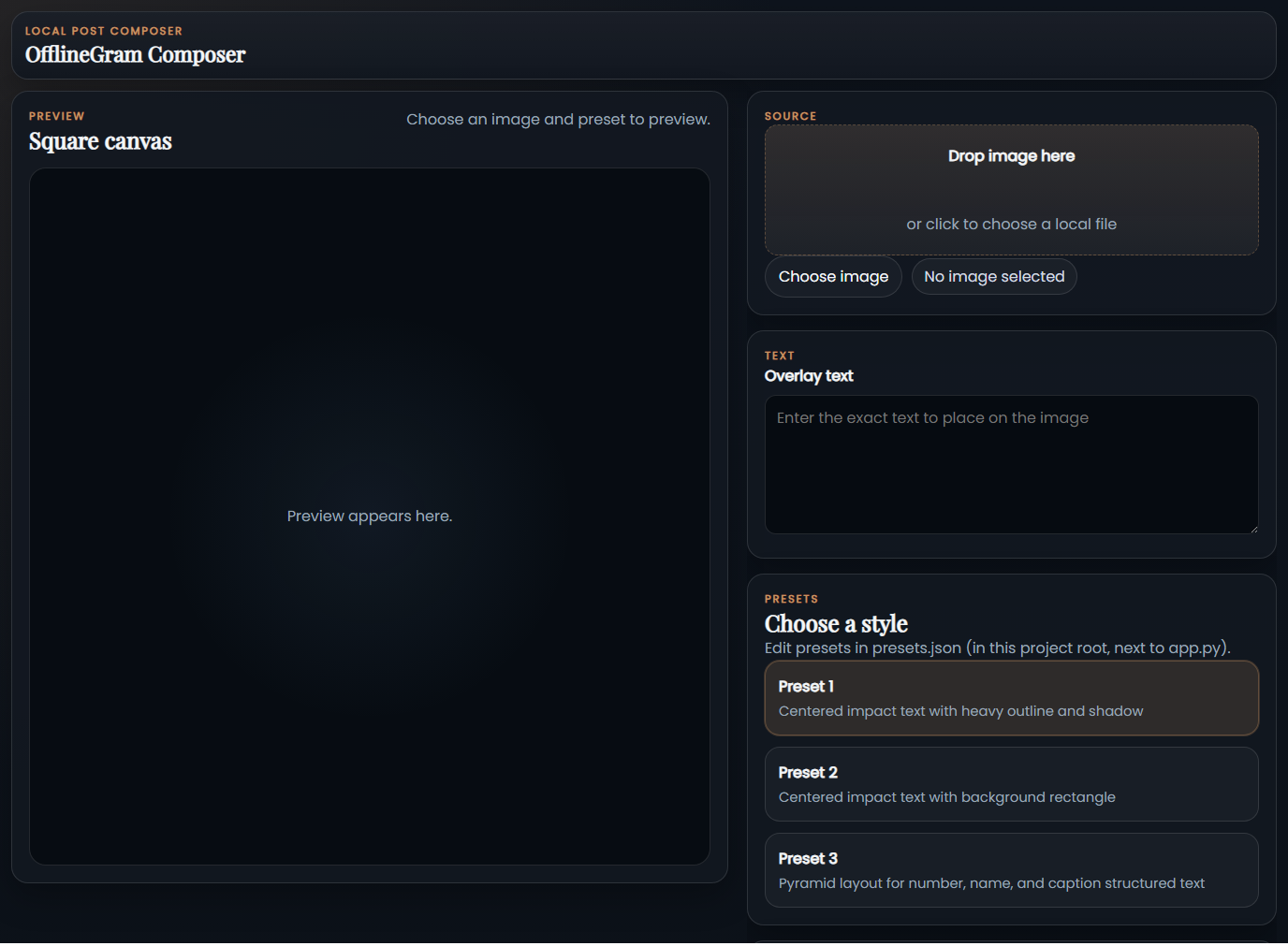
Drag-and-drop or use the native Windows picker to load JPEG, PNG, WebP, or BMP files.
Enter overlay text in one place. Multi-line, uppercase, or mixed — handled automatically.
One click applies a full style — fonts, colors, shadow, outline, position, opacity.
See the composited square canvas instantly before you commit to export.
Save to any local folder. No watermarks, no compression, no upload.
Pair one image folder with either a quote list or a structured preset-driven text file and export the whole run in one pass.
Nothing leaves your machine. No telemetry, no login, no internet required.
Requires Python 3.11 (recommended) or 3.9+. Any modern browser.
git clone https://github.com/09ashishkapoor/offlinegram-composer.git
Double-click setup.bat — creates a virtual environment and installs all dependencies.
Double-click launch.bat, then open http://127.0.0.1:8000 in your browser.
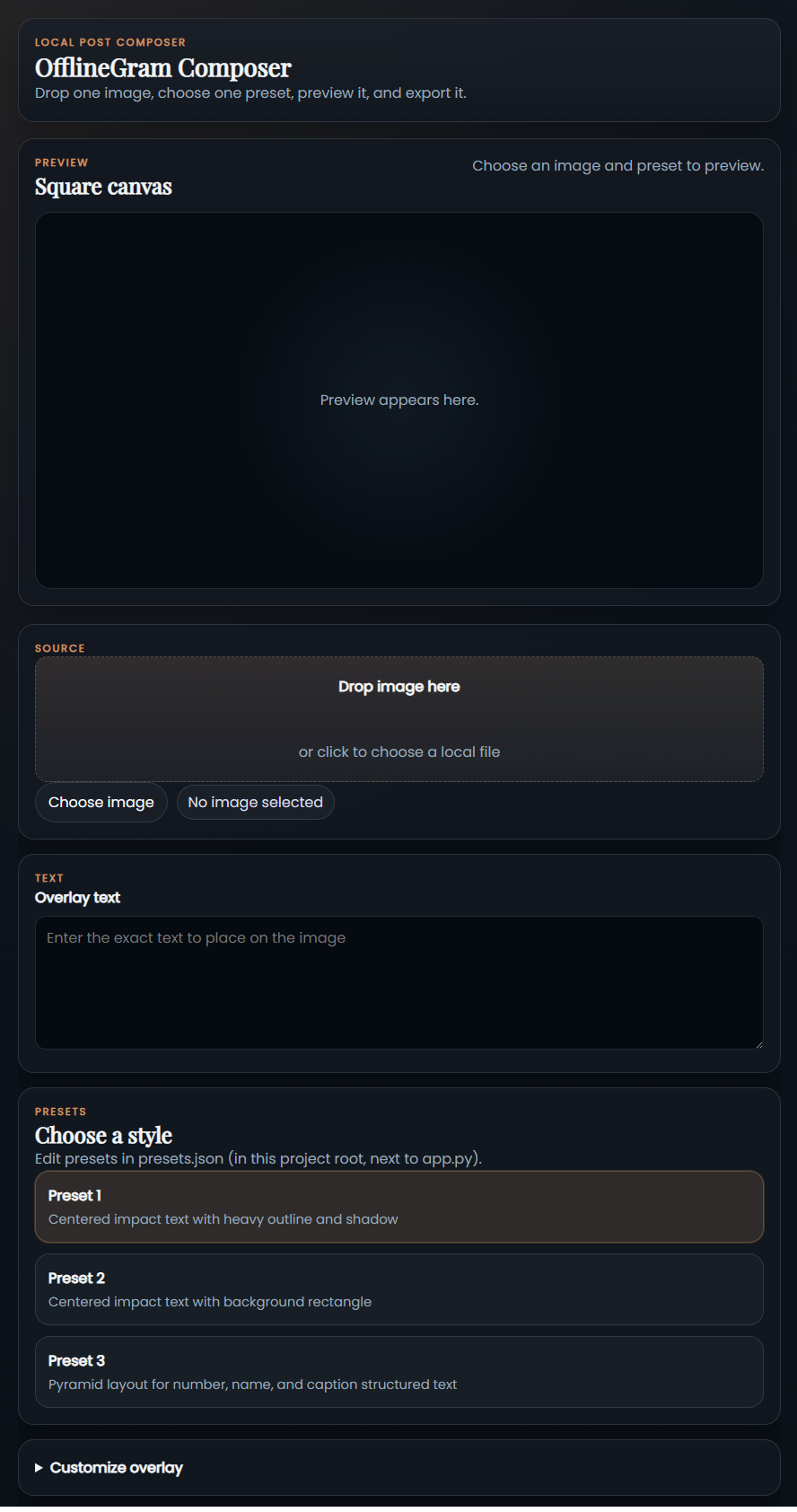
Drop an image, type your text, choose a preset, preview, and click Export PNG. On Windows, Choose buttons open native file/folder dialogs.
If native dialogs are unavailable in the current runtime, the app falls back to its built-in browser picker.
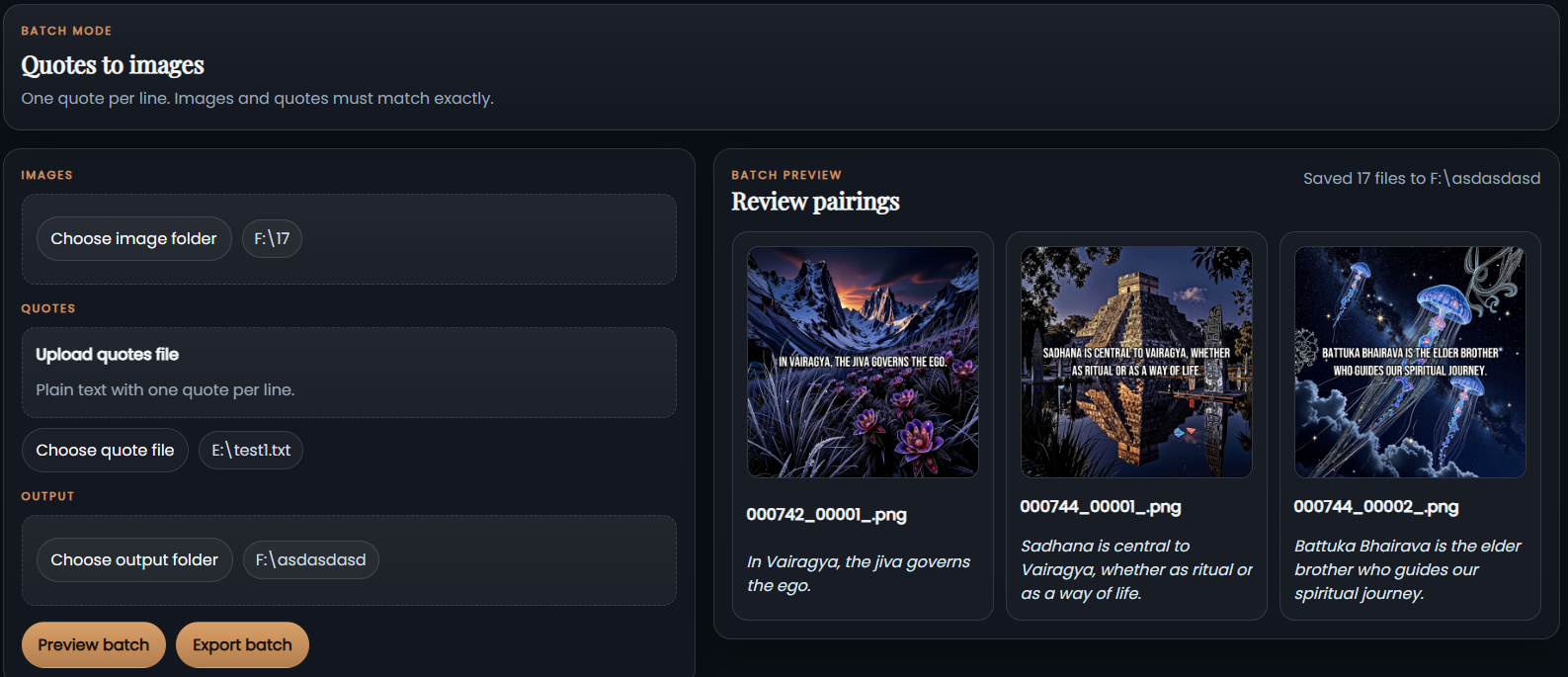
Use Quotes to images when you want to process a whole folder with one preset and either a simple quote list or a structured preset-driven text file.
Select the source folder that contains the images you want to process in order.
Upload or choose a UTF-8 text file. The exact format depends on the preset selected from the root preset config.
Batch behavior is driven by presets.json in the project root. Use those preset definitions as-is, or edit that file to change layout and field mapping.
Render the first few image and quote pairs before exporting the full batch.
Choose an output folder and save every rendered PNG in one operation.
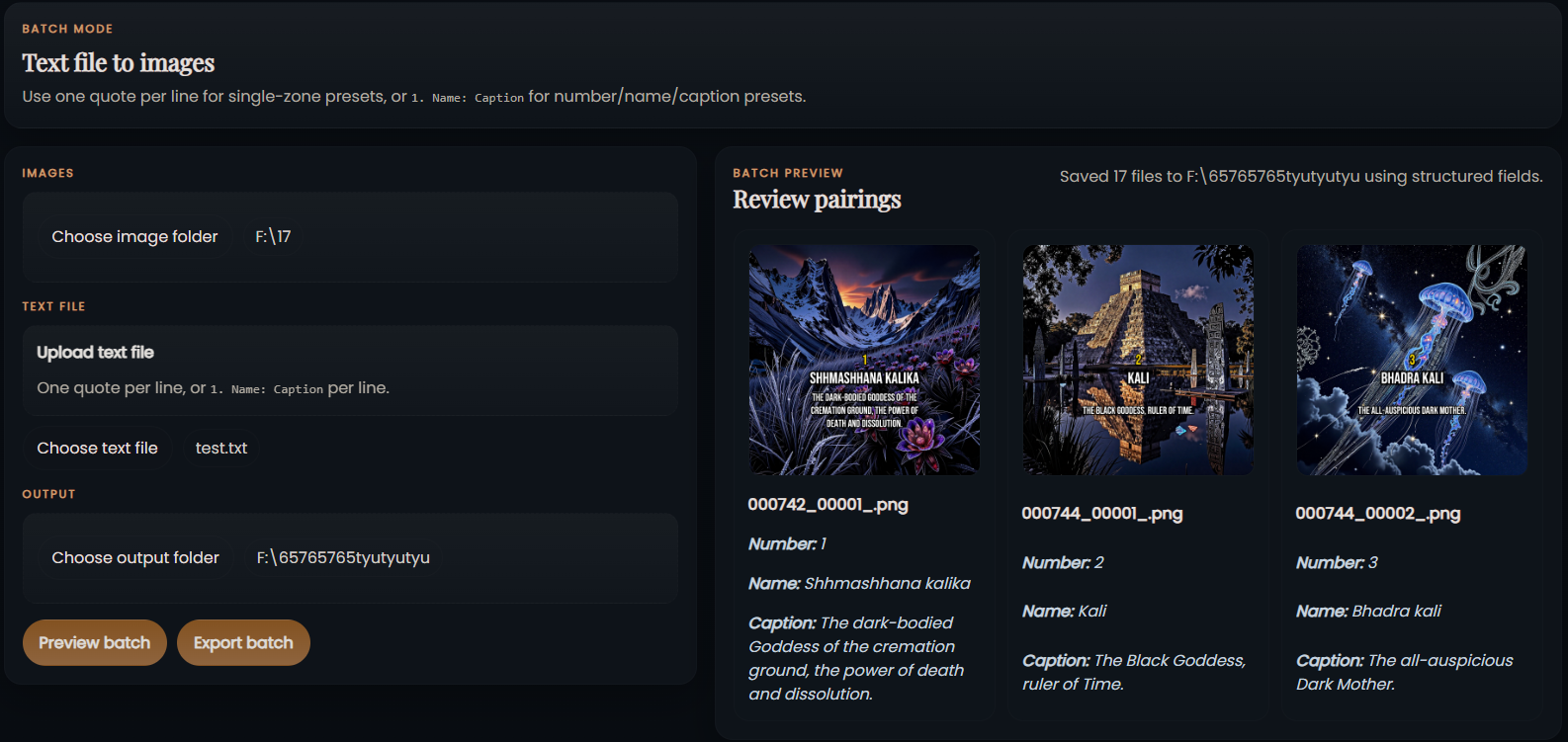
Single-zone presets expect one quote per non-empty line. Structured presets activate when the selected root preset exposes text zones such as number, name, caption, title, or subtitle.
presets.json in the project root, next to app.py. That root file is the source of truth for preset layout and batch field mapping.
The built-in preset_3 is the shipped example for structured batch rendering. Each non-empty line fills the number, name, and caption zones using the format 1. Name: Caption.
1. Shhmashhana kalika: The dark-bodied Goddess of the cremation ground, the power of death and dissolution.
2. Kali: The Black Goddess, ruler of Time.
3. Bhadra kali: The all-auspicious Dark Mother.
The repository includes sample_file_Preset3.txt in the root folder as a longer example. Structured batch export also requires the image count and structured-entry count to match exactly.
| Layer | Library |
|---|---|
| Backend | FastAPI + Uvicorn |
| Image rendering | skia-python |
| Image loading | Pillow |
| Frontend | Vanilla HTML / CSS / JS |
| Tests | pytest + FastAPI TestClient |
Structured batch files are now supported. Use preset_3 or your own root-level preset definitions in presets.json to map one line of input into multiple zones such as number, name, caption, title, or subtitle.